Welcome to Aibuild Documentation
This comprehensive guide will help you understand how to effectively use Aibuild software for large-scale additive manufacturing, including its visual programming environment, operator-based workflow creation, and advanced slicing techniques.
What is Aibuild?
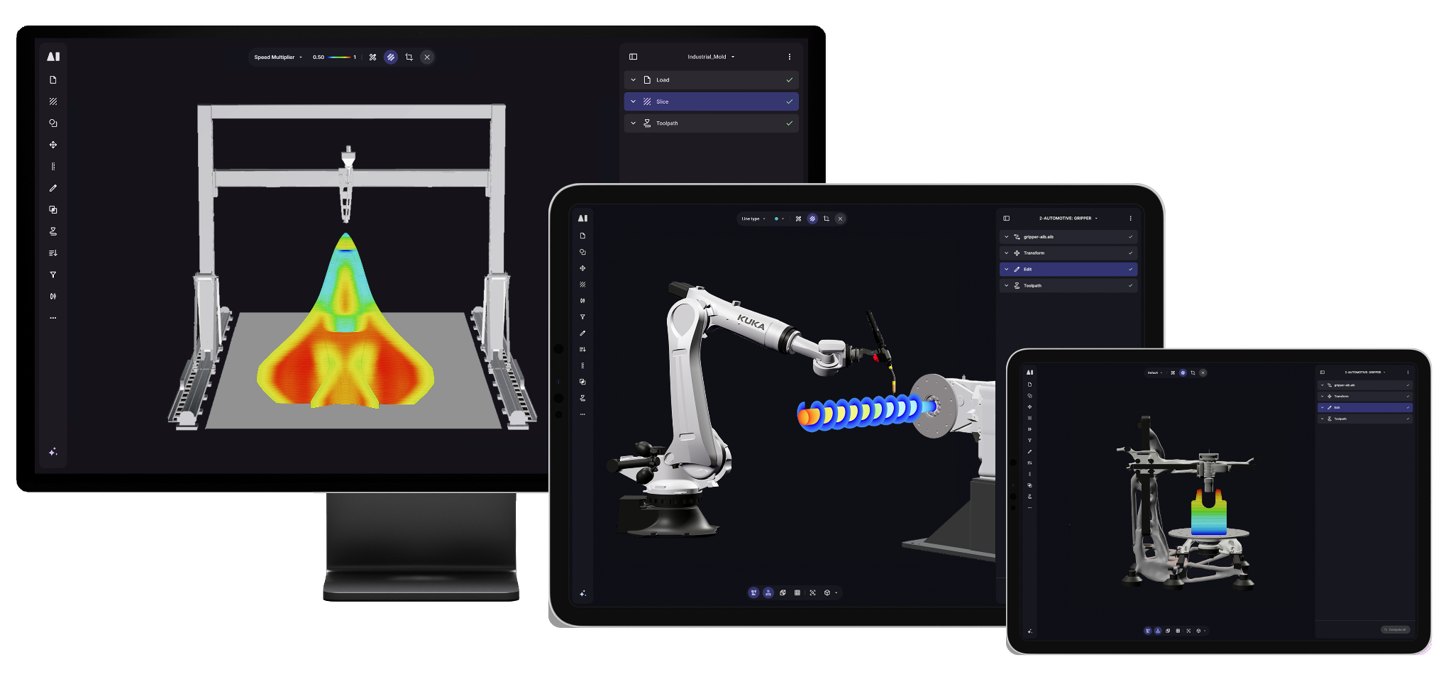
Aibuild is a comprehensive software platform for large-scale additive manufacturing (3D printing). It provides a powerful visual programming environment that enables engineers, designers, and manufacturers to create complex 3D printing workflows without writing code. The software handles everything from importing 3D models to generating optimized toolpaths for various types of additive manufacturing systems.
Key Features
- Visual Workflow Editor: Create manufacturing processes using an intuitive node-based interface
- Advanced Slicing Strategies: Horizontal, Angular, Multiplanar, Radial, Non-planar, and more
- Universal Post-Processing: Export toolpaths to any printer format via customizable post-processors
- Material Management: Comprehensive material library with customizable parameters
- Cloud & Desktop Deployment: Available as both cloud-based and on-premises solutions
- Real-time Visualization: Preview toolpaths, simulate processes, and validate results
- Scalable Architecture: Handle models from small prototypes to large industrial parts
Platform Options
Cloud Platform
Access Aibuild from any browser with automatic updates and cloud storage. Visit app.ai-build.com to get started.
Desktop Version
Run Aibuild locally with full control over your data and processing. Perfect for organizations with specific security requirements or offline operation needs.
Who Should Use Aibuild?
- Manufacturing Engineers designing processes for large-scale 3D printing
- Research Teams exploring new additive manufacturing techniques
- Production Facilities requiring reliable, repeatable printing workflows
- Design Teams needing advanced control over printing strategies
- Educational Institutions teaching advanced manufacturing concepts
Installation Guide
System Requirements
Aibuild Cloud Requirements
To use our application smoothly in Google Chrome, make sure your system meets the following minimum requirements. Although the software can run on any browser, we advise using Google Chrome.
Minimum Requirements
- Operating System:
- Windows 10 or newer
- macOS 10 or newer
- Browser: Latest version of Google Chrome (officially supported)
- Processor: Intel Core i5 (11th gen), AMD Ryzen 5, or Apple M1 and newer
- Graphics: Dedicated graphics card (e.g., NVIDIA GTX 750 or better)
- Memory: Minimum 8 GB RAM (16 GB recommended)
- Internet:
- Download speed: 20 Mbps or higher
- Upload speed: 10 Mbps or higher
- Latency: Under 50 ms
Recommended Requirements
- Processor: Intel Core i7/i9 or AMD Ryzen 7/9 (8+ cores)
- Memory: 32 GB RAM or more
- Graphics: Dedicated GPU with 4GB+ VRAM (NVIDIA/AMD)
- Storage: 50 GB+ available space on SSD
- Display: 1920x1080 or higher resolution
Installation Steps
Cloud Version
- Visit app.ai-build.com
- Create an account or sign in
- Start using Aibuild directly in your browser
- No installation required!
Desktop Version
Windows Installation
- Download the installer from the Aibuild website
- Run the installer as Administrator
- Follow the installation wizard
- Choose installation directory (default: C:\Program Files\Aibuild)
- Select components to install
- Launch Aibuild from Start Menu or Desktop shortcut
Linux Installation
# Download the AppImage
wget https://download.ai-build.com/aibuild-latest.AppImage

# Make it executable
chmod +x aibuild-latest.AppImage

# Run Aibuild
./aibuild-latest.AppImage
macOS Installation
- Download the .dmg file
- Open the downloaded file
- Drag Aibuild to Applications folder
- Launch from Applications or Launchpad
License Activation
- Launch Aibuild
- Click "Activate License" on the welcome screen
- Enter your license key
- Select activation type:
- Online: Automatic activation (recommended)
- Offline: For air-gapped systems
- Click "Activate"
Initial Setup
First Launch
- Choose your workspace location
- Select default units (metric/imperial)
- Configure printer connection (optional)
- Import material library (optional)
- Complete the setup wizard
Workspace Configuration
- Projects Folder: Where your projects will be saved
- Temp Directory: For temporary processing files
- Export Directory: Default location for exported files
- Backup Settings: Configure automatic backups
Getting Started with Aibuild
Your First Project
Let's create your first 3D printing project in Aibuild. This tutorial will walk you through the basic workflow.
Step 1: Create a New Project
- Click File > New Project or press
Ctrl+N
- Enter a project name (e.g., "My First Print")
- Choose a template:
- Blank: Start from scratch
- Basic Slicing: Simple horizontal slicing workflow
- Advanced Multi-Axis: For 5-axis printers
- Click Create
Step 2: Import Your 3D Model
- Click the Import Model operator in the workflow
- Browse and select your STL, OBJ, or STEP file
- The model appears in the 3D viewport
- Use mouse controls to navigate:
- Left Click + Drag: Rotate view
- Right Click + Drag: Pan view
- Scroll Wheel: Zoom in/out
Step 3: Configure Slicing
- Add a Slicing Strategy operator
- Choose your slicing method:
- Horizontal: Traditional layer-by-layer
- Angular: Angled layers for overhangs
- Radial: For cylindrical parts
- Set layer height (e.g., 0.2mm)
- Configure other parameters as needed
Step 4: Generate Toolpath
- Add a Toolpath Generator operator
- Set printing parameters:
- Nozzle Diameter: 0.4mm (typical)
- Print Speed: 50 mm/s
- Temperature: Based on material
- Connect operators by dragging from output to input ports
- Click Generate to create toolpaths
Step 5: Export for Printing
- Add a Post Processor operator
- Select your printer type
- Configure printer-specific settings
- Click Export G-code
- Save the file to your preferred location
Understanding the Interface
Main Window Components
1. Workflow Canvas (Center)
- Visual programming area
- Drag and drop operators here
- Connect operators to create workflows
- Right-click for context menu
2. Operator Library (Left Panel)
- Categorized list of all operators
- Search bar at the top
- Drag operators to canvas
- Double-click for quick add
3. 3D Viewport (Right Panel)
- Real-time 3D visualization
- Shows model and toolpaths
- Interactive camera controls
- Display options toolbar
4. Properties Panel (Bottom)
- Shows selected operator settings
- Edit parameters here
- Real-time preview updates
- Help text for each parameter
5. Timeline (Bottom)
- For time-based simulations
- Play/pause controls
- Speed adjustment
- Frame-by-frame stepping
Project and Workflow Management
What is a Project?
In Aibuild software, a Project is the main container that organizes all related elements of your 3D printing workflow. Inside a project, you can create and manage multiple Workflows, which are essentially sets of interconnected Operators that perform specific tasks such as loading models, slicing geometries, applying transformations, generating toolpaths, and more.
Key Points of a Project:
- Main Structure: Projects are the top-level organizational unit
- Contains Workflows: Each project can have multiple workflows, which are the step-by-step execution processes for additive manufacturing
- Workflow Management: Inside workflows, you add Operators sequentially to manipulate your 3D models and generate machine instructions
- Material, Nozzle, and Printer Selection: When you create a workflow, you specify a printer, material, and nozzle which define the baseline parameters
- Operator Management: Operators are visually connected, and their outputs are used as inputs for the next step
Creating a New Project
Method 1: From Home Page
- Navigate to the Home Page
- Click on the + icon at the top right corner
- Select Create New Project
Method 2: From Projects Page
- Navigate to the Projects Page
- Click on +New Project
- Assign a name to your project
- Create and select:
- Printer configuration
- Material type
- Nozzle type
- Confirm your selections
Managing Existing Projects
Existing projects can be accessed from the Project Page. For each project, you can:
- Rename: Change the project name
- Send Copy: Share a copy with team members
- Delete: Remove the project entirely
Access these options by clicking the three dots menu for any project.
Quick Access
Projects can also be accessed quickly from inside a workflow through the navigation panel.
Adding 3D Models
You can add 3D models to your project in two ways:
Method 1: Using Files Tab
- Navigate to the Files tab in the Projects page
- Upload your 3D model files
- Supported file types include:
- OBJ - Standard 3D object files
- STL - Stereolithography files
- STEP - CAD exchange format
- DXF - Drawing exchange format
- AIB - Aibuild native format
Method 2: From Workflow Page
- Open your workflow
- Click the + icon in the left sidebar
- Select and import your model directly
What is a Workflow?
A Workflow in Aibuild Software is a structured series of operators and process steps that define how a 3D model is processed for additive manufacturing or hybrid manufacturing. It represents the complete path from loading a 3D model to generating machine instructions (G-code or other postprocessors) that are executed by the printer.
Key Components of a Workflow:
1. Starting Point: Load Operator
Every workflow starts with a Load Operator. This is where you import your 3D model. Multiple Load Operators can be used if you have more than one model.
2. Printer, Material, and Nozzle Selection
You must select these before building the workflow. This selection automatically configures:
- Layer height and bead width (determined by nozzle size)
- Extrusion temperatures (defined by material)
- Toolpath settings (optimized for printer type)
3. Process Flow with Operators
Aibuild uses operators to process the model:
- Slice Operator → Converts 3D model into layers/polylines
- Filter Operator → Filters out layers or sections
- Transform Operator → Moves, scales, and rotates objects
- Edit Operator → Edits polylines, toolpaths, and seams
- Combine Operator → Merges multiple polyline outputs
- Sort Operator → Organizes layers for printing order
- Toolpath Operator → Generates machine instructions
4. Linking Inputs and Outputs
Each operator's output must be linked to the input of the next operator. This chaining creates a process flow where each stage refines the geometry.
Example: Load → Slice → Filter → Toolpath
5. Visualization and Simulation
You can visualize:
- Polylines: Line type, layer, sequence, thickness
- Meshes: Shaded, wireframe, or solid mode
- Surfaces: STEP files
Simulation allows you to preview:
- Printing simulation
- Toolpath paths and machine movements
- Axis limits and workspace limits
- Reach limits and wrist singularities
- Collision points
6. Error Checking and Optimization
Aibuild software analyzes and detects:
- Overhangs, non-intersecting layers, and path errors
- You can optimize with the Optimize Operator for better curvature, thickness, and speed
7. Final Output
The final step is exporting:
- G-code for traditional 3D printers
- KRL for KUKA robots
- RAPID for ABB robots
- Custom Post Processors if configured
Common Workflow Structures
Basic Workflow
Load → Slice → Toolpath
Advanced Workflow
Load → Slice → Filter → Edit → Combine → Sort → Toolpath
Linking Operators
To link operators, drag the output of one to the input of another. Ensure the data types match (e.g., polylines to polylines, mesh to mesh).
Workflow Interface
The Workflow Page in Aibuild Software is the main interface where you build, configure, and manage the toolpath for additive manufacturing or hybrid processes. The UI is designed for intuitive visual programming and seamless navigation through the workflow steps.
Page Structure
The page consists of a 3D environment and four toolbars docked at different positions:
Left Toolbar - Quick Navigation
Your quick access panel for:
- Navigate main platform menu - Jump between projects, materials, and settings
- Import Geometries - Easily bring in your 3D models for processing
- Find Operators - Access the full library of operators to start building your workflow
This is your starting point for any workflow creation.
Right Toolbar - Engineering Workspace
Your core engineering workspace where you can:
- Construct your Workflow - Drag and drop operators to define your process
- Edit Toolpaths - Modify layer heights, bead widths, tool speeds, and seam positions
- Optimize Geometry - Apply filters, transforms, and adjustments for perfect slicing
This is the core area where toolpaths are engineered and refined.
Top Toolbar - Dynamic Controls
A dynamic control panel that auto-updates based on what you're editing:
- If you're starting → Printer selection, material selection, and nozzle
- If you're in Mesh Mode → Shading options, wireframe views, and clipping planes
- If you're in Polyline Mode → Options for visualization, sequence, thickness, and layer height
It seamlessly adapts to your workflow stage.
Bottom Toolbar - Visualization & Simulation
Your printer visualization and simulation toolbar containing:
- Visualization Tools - Hide and show different components of your printer
- Simulation Bar - Run print simulations to verify toolpaths and detect issues before exporting
Creating a Workflow
Step 1: Initial Setup
- Create a new workflow and give it a name
- Select a Printer, Material, and Nozzle
- This sets the defaults for your workflow based on machine capabilities and material characteristics
- You can change these from the top toolbar at any time
Step 2: Add Operators
The basic sequence of operators for a simple workflow:
1. Import File Operator
- Use to import your design files (OBJ, STL, STEP, DXF, AIB)
- Always the first operator in your workflow
- Select the Up Direction (Y or Z) and center to working area
2. Slice Operator
- Add the Slice operator to slice geometry based on chosen mode:
- Horizontal, Angular, Multiplanar
- Radial, Nonplanar, Segmented
- Vase, Slicing Path, or Cladding
- The slicing mode depends on geometry and desired layer type
3. Toolpath Operator
- Finally, add to convert sliced geometry into machine-readable instructions
- This is the last operator to generate the path for the robot
Step 3: Connect the Operators
- Ensure each operator's output connects to the next operator's input
- Select "Select Input" dropdown and choose the appropriate previous step
Optional Operators (Based on Needs)
- Filter Operator - Filter specific layers or features
- Optimise Operator - Optimize polylines for smoothness and layer height
- Transform Operator - For transformations (move, rotate, scale)
- Combine Operator - Combine multiple models
Managing Workflows and Operators
Workflow Management
Access workflow options via the three vertical dots at top right:
- Collapse/expand all operators
- Rename workflow
- Duplicate workflow
- Delete workflow
- Send copy to team members or support
Operator Management
For individual operators, use the three dots on each operator to:
- Lock view to overlay with other operators
- Rename operator
- Duplicate operator
- Delete operator
Understanding Operators
Operators are the building blocks of your workflow. Each operator:
- Takes an input
- Processes it
- Outputs the result to the next stage
Core Examples:
- Load Operator: Imports your 3D model
- Slice Operator: Divides the model into layers for toolpath generation
- Toolpath Operator: Generates machine instructions for printing
Visual Programming Environment
The Visual Tool in Aibuild is the interactive environment that allows you to:
- Build workflows with drag-and-drop interface
- Visualize connections between operators
- Configure settings interactively
- Preview results in real-time
Node Connections
- Visual representation of data flow
- Connect outputs to inputs by dragging
- Color-coded connections for different data types
- Real-time validation of connections
Tips for Effective Workflow Creation
- Plan your workflow before starting - understand what transformations are needed
- Start simple - Begin with basic Load → Slice → Toolpath, then add complexity
- Use preview frequently to verify each step
- Save incrementally as you build complex workflows
- Test with simulation before generating final toolpath
Printers & Materials
Printers in Aibuild
What is a Printer?
In Aibuild software, a Printer represents the hardware configuration that executes the toolpath generated by the workflow. This includes not only the physical machine but also its kinematics, extrusion system, and motion components.
Key Components of a Printer:
1. Machine Type
A printer in Aibuild can be:
- 3-Axis Gantry System - Typically used for linear XYZ movements
- 6-Axis Robotic System - Used for complex geometries and nonplanar printing
- Custom Machines - User-defined configurations with custom CAD models and kinematic settings
2. Motion Components
The printer setup includes axes definitions:
- Gantry Systems: Axis 0 (static part), Axis 1, 2, and 3 (linear motion)
- Robot Systems: Links representing the movement capabilities of the robotic arm
3. Extruder and Nozzle
Each printer has a designated tool and nozzle setup affecting:
- Layer height
- Bead width
- Material deposition during printing
4. Material Compatibility
The printer defines available materials during workflow creation. For example, selecting a pellet-based printer makes only compatible materials (like polymer pellets) available.
5. Digital Twin Representation
Aibuild allows for Digital Twin Integration, where the entire printer setup is digitally replicated for simulation and validation before actual printing.
6. Process Parameters
The selected printer influences default values in:
- Toolpath generation
- Layer height
- Speed settings
- Thermal parameters
Configuring a Printer
Step 1: Access the Printer Page
- Open Aibuild software
- Navigate to the Printers tab from the main menu
- Click Add Printer
- Select a machine from the public library
Step 2: Configure Printer Settings
Update the general settings as instructed by the machine integrator.
Step 3: Custom Post-Processor
Configure custom post-processing steps through the Post Processor Operator. You can append or replace instructions at key events.
Step 4: Add/Update Printer Components
For custom integration:
For 6-Axis Robot Systems:
- Upload axis links from correct locations
- Configure robot base calibration
- Set TCP (Tool Center Point)
For 3-Axis Systems:
- Upload axis components
- Configure gantry limits
- Set home position
Step 5: Apply Machine Axis Limits
Define the working envelope and movement constraints.
Step 6: Set Home Position
Configure the machine's reference position.
Step 7: Base Calibration
Set up coordinates for:
- Robot base
- Print bed
- Print bed center
Step 8: Create Nozzle Library
Define available nozzles with their specifications.
Step 9: Tool/Extruder Calibration
Configure tool parameters and TCP setup.
Step 10: Workspace Safety
Set boundaries for safe operation.
Step 11: Maximum Extrusion Rate
Define throughput limits for the extruder.
Custom Components
Tool Types
- Polymer extruder
- Metal extruder
- Concrete extruder
- PU extruder
- Spindle for CNC
- Bespoke tools
Printing Bed Types
- Static - Fixed bed
- Rotary - Rotating platform
- Two Axis - XY movement
Plinth Types
- Static - Fixed base
- Linear - Rail-mounted base
Materials in Aibuild
What is a Material?
In Aibuild Software, a Material represents the physical substance used for additive manufacturing. Material settings define how it's processed during the printing workflow, including extrusion parameters, thermal properties, and mechanical behavior.
Material Types
1. Polymer Filament
Standard 3D printing materials like:
2. Polymer Pellets
Used for high-throughput extrusion with industrial pellet-fed extruders.
3. Metal Wire
For additive manufacturing with metals like:
4. Metal Powder
For powder-based metal printing processes.
5. Thermoset Resin
For resin-based printing applications.
Material Configuration
Accessing the Material Page
- Open Aibuild software
- Navigate to the Materials tab
- Click Add Material
- Select material type
Material Information
Each material profile includes:
General Properties
- Material Type (Filament, Pellet, Wire)
- Brand - Supplier information
- Cost/kg - Pricing information
- Density - For weight calculations
Thermal Properties
- Drying Temperature and Time - For optimal extrusion
- Specific Heat Capacity
- Thermal Conductivity
Print Settings
- Deposition Multiplier - Adjust volumetric output
- Extruder Heat Zones - Temperature settings for zones
- Bed Temperature - For proper adhesion
- Cell Temperature - Ambient temperature control
Layer Interpass Management
- Minimum Previous Layer Temperature
- Maximum Previous Layer Temperature
These settings are crucial for preventing warping or delamination.
Material-Specific Configurations
Filament Materials
- Nozzle temperature ranges
- Bed adhesion settings
- Retraction parameters
Pellet Materials
- Throughput rates
- Screw speed settings
- Barrel zone temperatures
Metal Wire
- Wire feed rates
- Arc parameters
- Shielding gas settings
Material Library Management
Duplicate Materials
Create variations of existing materials with modified parameters.
Delete Materials
Remove unused material profiles from your library.
Share Materials
Export material profiles to share with team members.
Best Practices
For Printers
- Always calibrate your printer before first use
- Regularly update axis limits and workspace boundaries
- Keep nozzle library updated with actual hardware
- Test post-processor modifications with dry runs
For Materials
- Always dry materials according to specifications
- Create material profiles for each brand/batch
- Document successful print parameters
- Use layer interpass management for large prints
- Adjust deposition multiplier based on actual results
Operator Library
The Operator Library in Aibuild consists of more than 100 operators designed for specific tasks within a workflow. These operators enable users to process, transform, optimize, and prepare geometries for large-scale additive manufacturing.
Core Operators
The Core Operators are the fundamental building blocks in an Aibuild Workflow. These operators are crucial for preparing geometries, generating toolpaths, and executing additive manufacturing processes efficiently.
Import File
Purpose: Loads solid geometries and polylines into the workflow
Supported Formats: .obj, .stl, .step, .stp, .dxf, .aib
Key Settings:
- Model Units - Converts to millimeters
- Up Direction - Y or Z axis orientation
- Center Geometry - Places at printing bed center
Create
Purpose: Creates basic geometries such as mesh primitives, points and planes
Options:
- Primitive types (box, sphere, cylinder, etc.)
- Dimension controls (X, Y, Z)
- Cap options for closing planar holes
- Auto-centering on bed
Transform
Purpose: Apply transformations to Meshes, Polylines, Points and Planes
Operations:
- Move (translation in X, Y, Z)
- Rotate (around X, Y, Z axes)
- Scale (by factor)
- Rotation order (XYZ or ZYX)
Slice
Purpose: All-in-one slicing component for different slicing strategies
Modes: Horizontal, Angular, Multiplanar, Nonplanar, Radial
Features:
- Adaptive layers
- Wall generation (count, thickness)
- Infill patterns
- Support structures
- Bed adhesion (brim/raft)
- Seam adjustment
Optimise
Purpose: Optimizes properties based on analysis data
Optimization Types:
- Thickness optimization
- Speed optimization
- Layer height optimization
Analysis Inputs:
- Curvature
- Thickness
- Cantilever angle
Filter
Purpose: Filters polylines by given criteria
Filter Options:
- By layer number
- By line type
- By thickness
- By position
- Range-based filtering
Edit
Purpose: Edits polyline properties
Editable Properties:
- Layer number
- Line type
- Layer height
- Thickness
- Rotations
- Speed multiplier
Sort
Purpose: Sorts sliced geometry
Sort Criteria:
- By layer
- By region
- By line type
- Ascending/descending order
Seams
Purpose: Adjusts starting point of each polyline
Adjustment Operations:
- Sharpest corner
- Random placement
- Reference point
- Aligned seams
Combine
Purpose: Combines multiple polyline outputs
Features:
- Merge polyline sets
- Remap layers
- Maintain sequencing
Toolpath
Purpose: Converts polylines into machine instructions
Key Features:
- Safety checks (axis limits, workspace, collisions)
- Speed settings per line type
- Jump configurations
- Temperature management
- First layer settings
- Motion planning
Polyline Operators
Polyline operators manipulate and optimize polylines derived from slicing and path generation.
Key Polyline Operators:
Average Polyline
Creates mean polyline from input polylines with smoothing options.
Brim
Generates brim or raft for bed adhesion with customizable:
- Line count
- Line width
- Gap from geometry
- Overlapping percentage
Clip Polylines
Clips polylines at start/end by specified distance.
Close Polylines
Closes open polylines by connecting endpoints.
Connect Open Polylines
Connects open polylines with configurable:
- Per-layer connection
- Maximum connection distance
- Make closed option
Infill2D
Fills polylines with patterns:
- Zig-zag
- Grid
- Triangular
- Honeycomb
- Density control (0-100%)
Make Continuous
Organizes polylines into regions and creates continuous paths.
Milling
Generates milling strategies for hybrid manufacturing:
- Roughing passes
- Finishing passes
- Tool diameter/length settings
- Step-over percentage
Offset
Offsets polylines by specified amount with multiple counts.
Primer
Creates primer line for clean extrusion start.
Rebuild Polylines
Rebuilds based on:
- Segment length
- Even spacing
- Sharp angle preservation
Spiral
Converts to spiral polylines for seamless printing:
- Smooth or ramped modes
- Gradient extrusion control
- Start/end preservation
Mesh Operators
Designed to manipulate and optimize 3D mesh geometries before slicing.
Key Mesh Operators:
Align/Align Meshes
Aligns mesh orientation to reference geometry.
Auto Orient Mesh
Automatically orients for optimal printing.
Combine Meshes
Merges multiple meshes into single geometry.
Mesh Boolean
Boolean operations (union, difference, intersection).
Mesh Offset
Offsets mesh surface by specified distance.
Remesh
Rebuilds mesh with target edge length and quality.
Simplify Mesh
Reduces polygon count while preserving shape.
Split Mesh
Splits mesh by plane or criteria.
Plane Operators
Key Plane Operators:
Create Planes Along Path
Generates planes following a path.
Plane From Mesh
Creates reference plane from mesh orientation.
Smooth Planes
Smooths plane transitions.
Tween Planes
Interpolates between plane orientations.
Point Operators
Key Point Operators:
Center Of Mass
Calculates geometric center of mass.
Get Centroid
Finds centroid of geometry.
Analysis Operators
Key Analysis Operators:
Cantilever Angle Analysis
Analyzes overhanging angles for support requirements.
Curvature Analysis
Analyzes curvature for optimization:
- Spread length
- Smooth level
- Normalization
Thermal Simulation
Simulates temperature during printing:
- Previous layer temperatures
- Out-of-range detection
- Material-specific recommendations
Design Operators
Mould Designer
Specialized operator for mould generation:
- Multiple perimeter walls
- Internal stiffeners
- Milling stock allowance
- Forklift pockets
- Extension length control
Best Practices
Operator Sequencing
- Always start with Import File or Create
- Apply transforms before slicing
- Slice before filtering/editing
- Optimize after initial slicing
- Generate toolpath as final step
Performance Tips
- Use Filter early to reduce processing
- Combine similar operations
- Preview frequently to verify
- Use appropriate analysis before optimization
- Test with simulation before export
Common Patterns
- Basic: Load → Slice → Toolpath
- Optimized: Load → Slice → Optimize → Toolpath
- Complex: Load → Transform → Slice → Filter → Edit → Combine → Sort → Toolpath
- Hybrid: Load → Slice → Milling → Combine → Toolpath
Slicing Strategies
In Aibuild, slicing is a crucial step in converting 3D geometries into printable layers. Unlike traditional slicers that mostly use horizontal slicing, Aibuild supports advanced multi-axis slicing strategies tailored for large-scale additive manufacturing with industrial robots.
Horizontal Slicing
Description
The part is sliced into parallel planes that are aligned horizontally with the printing bed.
Use Case
- Ideal for simple, flat geometries with minimal overhangs
- Best suited for typical planar parts without complex geometries
Advantages
- Fast slicing and straightforward path generation
- Simplifies layer-by-layer extrusion
Categories in Horizontal Mode
Layers
- Layer height control
- Adaptive layer options
- First/last layer offset
Walls
- Wall count (outer and inner)
- Wall thickness settings
- Bead position alignment
- Overlap percentage
Infill
- Pattern selection
- Density control (0-100%)
- Pattern rotation between layers
Skin
- Top/bottom solid layers
- Skin thickness
- Pattern options
Support
- Support generation for overhangs
- Support density
- Interface layers
Bed Adhesion
- Brim or raft generation
- Line count and width
- Gap from geometry
Seams
- Seam placement strategy
- Reference point option
- Alignment methods
Angular Slicing
Description
Slices the part using parallel planes angled relative to the printing bed.
Use Case
- Parts with consistent angular features
- Reducing support requirements
- Improving surface quality on angled surfaces
Key Settings
- Rotation axis selection
- Rotation angle (degrees)
- Layer height along slicing plane
Multiplanar Slicing
Description
Allows slicing using multiple planes with different orientations. Planes are not parallel, and slicing orientation transitions gradually between defined guide planes.
Use Case
- Complex geometries requiring varying slice angles
- Parts with multiple optimal printing orientations
- Minimizing support material
Features
- Multiple guide plane definition
- Smooth transitions between planes
- Adaptive layer management
Slicing Path
Description
Generates slicing planes along a specified polyline or curve. Planes follow the path direction, adapting to geometry flow.
Use Case
- Curved or organic geometries
- Following natural contours
- Custom layer orientations
Settings
- Path polyline selection
- Plane spacing along path
- Orientation control
Radial Slicing
Description
Slices geometry using cylindrical planes radiating around a central point, like spokes of a wheel.
Use Case
- Cylindrical or circular parts
- Radially symmetric geometries
- Rotational printing strategies
Parameters
- Center point definition
- Angular increment
- Radial layer height
Revolve Slicing
Description
Creates layers by revolving around an axis, suitable for rotationally symmetric parts.
Use Case
- Axially symmetric parts
- Continuous rotation printing
- Seamless cylindrical structures
Configuration
- Rotation axis
- Revolution angle
- Layer progression
Nonplanar Slicing
Description
Slices geometry using curved mesh surfaces instead of flat planes. Layers follow surface curvature for smooth transitions.
Use Case
- Curved top surfaces
- Eliminating stair-stepping
- Smooth surface finish
Advantages
- No Z-jumps on curved surfaces
- Better surface quality
- Reduced post-processing
Requirements
- 5-axis or 6-axis capability
- Surface reference geometry
- Curvature analysis
Vase Slicing
Description
Creates continuous spiral-like toolpath for printing open, hollow shapes without layer transitions.
Use Case
- Single-wall vessels
- Decorative objects
- Smooth continuous surfaces
Features
- Automatic spiral generation
- No seams or layer changes
- Continuous extrusion
Segmented Slicing
Description
Automatically detects multiple open sides and segments slicing direction accordingly. Each segment uses optimal direction.
Use Case
- Multi-branch structures
- Complex manifolds
- Parts with varying orientations
Benefits
- Automatic segmentation
- Optimal direction per segment
- Reduced support needs
Cladding Slicing
Description
Slices and generates toolpaths for printing onto existing surfaces, treating surface as base.
Use Case
- Adding material to existing parts
- Repair applications
- Surface coating
Settings
- Base surface selection
- Cladding thickness
- Pattern strategy
- Offset from surface
Choosing the Right Slicing Strategy
Decision Factors
Geometry Complexity
- Simple → Horizontal
- Angular features → Angular
- Complex → Multiplanar or Segmented
Surface Quality Requirements
- Standard → Horizontal
- Smooth curves → Nonplanar
- No seams → Vase or Spiral
Support Minimization
- Use Angular or Multiplanar
- Consider Segmented for branches
Machine Capabilities
- 3-axis → Horizontal, Angular
- 5/6-axis → All strategies available
Part Orientation
- Fixed → Horizontal
- Rotatable → Radial, Revolve
- Free → Multiplanar, Segmented
Common Settings Across All Modes
Layer Parameters
- Layer height (mm)
- Adaptive layers option
- First/last layer offset
Wall Generation
- Wall count and thickness
- Bead position
- Overlap percentage
- Single extrusion allowance
Quality Settings
- Rebuild polylines
- Join tolerance
- Smoothing options
Optimization
- Overfill compensation
- Continuous mode
- Seam adjustment
Best Practices
- Start Simple: Begin with horizontal slicing, then explore advanced modes
- Preview Often: Check each slicing result before proceeding
- Consider Supports: Factor in support generation needs
- Test Small: Validate strategy on test pieces
- Document Settings: Save successful configurations
- Simulate First: Use simulation to verify before printing
Toolpath Generation
The Toolpath operator is the final stage in the workflow that converts processed polylines into machine-ready instructions. It takes sliced and optimized polyline geometry and generates G-code or robot-specific commands for printing.
Safety Checks
Safety checks are automated validations that run during toolpath generation to ensure the resulting machine instructions are printable, collision-free, and within machine constraints.
Purpose of Safety Checks
- Prevent robot or gantry collisions
- Avoid axis limit violations
- Ensure valid and executable motion paths
- Catch incorrect layer sequencing or overhang issues
Available Safety Checks
Check Axis Limits
Verifies that no robot axis exceeds its defined limits during the build.
Check Workspace Limits
Ensures the tool center point stays within workspace boundaries.
Check Reach Limits
Validates that all toolpath points are within machine reach.
Check Wrist Singularities
Detects when 4th and 6th axes align parallel (robot-specific).
Enable Collision Detection
Simulates build to check for body collisions between printer components.
Movement Speeds
Configure speeds for different line types to optimize print quality and time.
Speed Settings by Line Type
- Outer Wall Speed (mm/s) - Slower for quality
- Inner Wall Speed (mm/s) - Can be faster than outer
- Infill Speed (mm/s) - Typically fastest
- Skin Speed (mm/s) - Similar to outer wall
- Support Speed (mm/s) - Can be fast
- Support Interface Speed (mm/s) - Slower for better removal
- Brim Speed (mm/s) - First layer adhesion speed
- Milling Speed (mm/s) - For hybrid operations
- Travel Speed (mm/s) - Non-printing moves
- Scan Speed (mm/s) - Wiping movements
Jump Configuration
Jumps are the non-printing movements between polylines.
Jump Direction
- TOOL_NORMAL - Aligns with tool Z-axis
- BASE_Z_DIRECTION - Perpendicular to bed
Jump In Settings
Type Options:
- LINEAR - Straight path
- ARC - Curved approach
- NONE - Direct movement
Parameters:
- Jump In Height (mm)
- Jump In Speed (mm/s)
Jump Out Settings
Type Options:
- LINEAR - Straight retraction
- ARC - Curved departure
- NONE - No retraction
Parameters:
- Jump Out Height (mm)
- Jump Out Speed (mm/s)
Line Continuity
- Line Continuity Limit (mm) - Distance threshold for continuous printing
- Travel On Printed Path - Keep travels within printed areas
Process Control
Deposition Management
Deposition Before Start (DBS)
Options after retraction:
- DEPOSIT_VOLUME - Specific material volume
- DEPOSIT_AT_RATE - Timed deposition
- WAIT_FOR_DURATION - Pause with extrusion on
Deposition Before End
Pre-emptively stops extrusion before polyline end to reduce seam buildup.
Deposition After End
Controls extruder behavior after extrusion stops.
Wait Settings
- Wait After Open Polyline (s) - Pause duration after open paths
Scanning
- Enable Scanning - Wipe nozzle on existing layer
- Scan Distance (mm) - Length of wiping move
- Scan Open Polylines - Enable for open paths
Temperature Management
Standard Temperature Settings
- Nozzle Temperature (°C) - Primary extrusion temperature
- Bed Temperature (°C) - Build platform temperature
- Ambient Temperature (°C) - Enclosure temperature
Multi-Zone Temperature
- Bed 2 Temperature (°C) - Secondary bed zone
- Ambient 2 Temperature (°C) - Secondary enclosure zone
Cooling
Print Cooling
- Enable Print Cooling - Activate part cooling
- Cooling Fan Speed - Percentage or RPM
- Minimum Layer Time - Ensures cooling between layers
Layer Time Management
Automated speed adaptation or inter-layer waits to achieve correct previous layer temperatures.
First Layer Settings
Special parameters for the critical first layer.
Temperature Overrides
- First Layer Nozzle Temperature (°C)
- First Layer Bed Temperature (°C)
- First Layer Ambient Temperature (°C)
Extrusion Settings
- First Layer Max Extrusion Rate (steps/s)
- First Layer Speed Multiplier
- First Layer Height Adjustment
Motion Planning
Robot-Specific Settings
KUKA Parameters
- Advance_Run - $ADVANCE pointer value
- Apo_CDIS - Approximation distance
- Apo_CORI - Approximation orientation
ABB Parameters
- Zone Data - Corner path blending
- Speed Data - Velocity profiles
Path Planning
- Smoothing Radius - Corner blending
- Acceleration Limits - Motion dynamics
- Jerk Control - Smooth acceleration changes
Printing Bed Configuration
Bed Types
- Static - Fixed platform
- Rotary - Rotating bed for continuous printing
- Two-Axis - XY movable platform
Bed Settings
- Origin Position - Reference point
- Size Limits - Maximum build area
- Surface Type - Material/coating
Enclosure Settings
Environmental Control
- Temperature Zones - Multiple heating areas
- Atmosphere Control - Inert gas options
- Humidity Management - For specific materials
Safety Features
- Emergency Stop Integration
- Door Interlock
- Fume Extraction
Extrusion Control
Extrusion Rate
- Max Extrusion Rate (steps/s) - Stepper motor control
- Volumetric Limits - Maximum flow rate
- Pressure Advance - Compensation for elasticity
Material-Specific Settings
- Retraction Distance - Material pullback
- Retraction Speed - Pullback velocity
- Deretraction Speed - Push-forward rate
Output Formats
Standard Formats
- G-code - Universal 3D printer format
- KRL - KUKA Robot Language
- RAPID - ABB robot code
- Custom - User-defined post-processors
File Management
- File Naming - Automatic or custom
- Path Structure - Organization system
- Version Control - Revision tracking
Optimization Tips
Speed Optimization
- Set appropriate speeds for each line type
- Use higher speeds for infill
- Reduce first layer speed for adhesion
- Balance quality vs. print time
Quality Optimization
- Enable all safety checks
- Use scanning for clean seams
- Optimize jump heights
- Configure proper temperatures
Reliability
- Add wait times where needed
- Use travel on printed paths
- Enable collision detection
- Verify with simulation
Common Issues and Solutions
Stringing
- Increase jump heights
- Enable scanning
- Adjust retraction settings
Poor Layer Adhesion
- Check layer time management
- Verify temperature settings
- Adjust wait times
Collisions
- Enable collision detection
- Check workspace limits
- Verify jump configurations
Speed Issues
- Balance line type speeds
- Check acceleration limits
- Optimize travel moves
Post-Processors
In Aibuild, a post processor is a module that takes the toolpath output and converts it into machine-specific instructions. These are the final commands that will be sent to the robot or printer to execute the print.
Main Functions
The post processor performs critical conversions:
- Converts generic toolpath data into machine-specific code
- Handles format translation (G-code, KUKA KRL, ABB RAPID, etc.)
- Manages machine-specific commands and syntax
- Inserts custom instructions at key events
Supported Output Formats
G-code
Universal format for 3D printers and CNC machines
- Standard G-code commands (G0, G1, G2, G3)
- M-codes for machine functions
- Compatible with most FDM printers
KUKA KRL
KUKA Robot Language for KUKA robots
- LIN and PTP movements
- Base and tool configurations
- Speed and approximation settings
ABB RAPID
Programming language for ABB robots
- MoveL and MoveJ instructions
- Speed data and zone data
- Tool and work object definitions
Custom Formats
User-definable post-processors for:
- Proprietary machine formats
- Special equipment requirements
- Custom communication protocols
Custom Post-Processor Configuration
Accessing the Configuration
- Navigate to Printer settings
- Select Post-Processor tab
- Click "Custom Post-Processor"
Configuration Sections
Start of Program
Insert initialization commands:
- Home position moves
- Tool selection
- Heating commands
- Coordinate system setup
- Safety checks
Example:
G28 ; Home all axes
M104 S[nozzle_temp] ; Set nozzle temperature
M140 S[bed_temp] ; Set bed temperature
G92 E0 ; Reset extruder
End of Program
Cleanup and shutdown commands:
- Return to home position
- Turn off heaters
- Disable motors
- Park commands
Example:
M104 S0 ; Turn off nozzle
M140 S0 ; Turn off bed
G28 X Y ; Home X and Y
M84 ; Disable motors
Toggle On/Off Events
Extrusion On:
- Start material flow
- Pressure compensation
- Flow rate adjustment
Extrusion Off:
- Stop material flow
- Retraction commands
- Pressure release
Layer Change Events
Commands executed at each layer transition:
- Z-axis movements
- Layer announcements
- Temperature adjustments
- Fan speed changes
- Wait times
Example:
;LAYER:[layer_num]
G1 Z[layer_height]
M106 S[fan_speed]
Line Type Changes
Different commands for different line types:
- Outer wall settings
- Inner wall settings
- Infill parameters
- Support settings
Variable Placeholders
Common variables available in post-processor:
[nozzle_temp] - Nozzle temperature[bed_temp] - Bed temperature[layer_num] - Current layer number[layer_height] - Current Z height[feed_rate] - Movement speed[extrusion_rate] - Material flow rate[x], [y], [z] - Coordinates[e] - Extrusion value
Extrusion Calculation Methods
Volume-Based
Calculates extrusion based on:
- Line cross-section area
- Path length
- Material density
Area-Based
Uses projected area for calculation:
- Layer height
- Line width
- Path distance
Nozzle-Based
Direct nozzle throughput:
- Flow rate settings
- Pressure-based control
- Volumetric extrusion
Steps/Second
For stepper motor control:
- Direct step commands
- Precise motor control
- Custom gear ratios
Advanced Configuration
Multi-Material Support
Configure tool changes:
- Tool selection commands (T0, T1)
- Purge sequences
- Offset adjustments
- Temperature changes
Auxiliary Controls
Additional hardware control:
- Chamber heaters
- Part cooling fans
- LED indicators
- Sensors and probes
Communication Settings
Serial/network parameters:
- Baud rate
- Handshaking
- Buffer management
- Error handling
Robot-Specific Configuration
KUKA Configuration
$BASE = {X 0, Y 0, Z 0, A 0, B 0, C 0}
$TOOL = {X 0, Y 0, Z 200, A 0, B 0, C 0}
$ADVANCE = 3
$APO.CDIS = 2.0
ABB Configuration
MoveL Target_1, v100, z10, tool0;
MoveL Target_2, v50, fine, tool0;
Event Triggers
Available Events
- Program Start/End
- Layer Changes
- Line Type Changes
- Temperature Changes
- Tool Changes
- Pause/Resume
- Speed Changes
- Extrusion Rate Changes
Event Actions
For each event, you can:
- Insert custom code
- Replace default behavior
- Append to existing commands
- Conditional execution
Testing and Validation
Dry Run Testing
- Generate toolpath without material
- Verify movements and speeds
- Check for collisions
- Validate coordinates
Simulation
- Use built-in simulator
- Verify G-code in external viewers
- Check robot reach and limits
- Validate timing
Progressive Testing
- Test single layer first
- Verify start/end sequences
- Check layer transitions
- Validate full program
Common Customizations
Pressure Advance
M572 D0 S0.05 ; Set pressure advance
Mesh Bed Leveling
G29 ; Auto bed leveling
M420 S1 ; Enable leveling
Filament Change
M600 ; Filament change pause
Custom Purge
G1 X0 Y0 F3000 ; Move to purge position
G1 E10 F100 ; Purge 10mm
G92 E0 ; Reset extruder
Troubleshooting
Common Issues
Incorrect Extrusion
- Check calculation method
- Verify flow rate settings
- Calibrate extruder steps
Position Errors
- Verify coordinate system
- Check unit conversions
- Validate home position
Communication Failures
- Check baud rate
- Verify handshaking
- Buffer overflow prevention
Best Practices
- Document Changes: Keep notes on customizations
- Test Incrementally: Verify each modification
- Backup Originals: Save default configurations
- Use Variables: Leverage placeholders for flexibility
- Version Control: Track post-processor versions
- Share Knowledge: Document successful configurations
Examples
Basic G-code Post-Processor
; Start
G28 ; Home
M109 S[nozzle_temp] ; Wait for nozzle
M190 S[bed_temp] ; Wait for bed

; Layer change
;LAYER:[layer_num]
G1 Z[z] F[z_speed]

; Extrusion on
G1 E[retract_length] F[retract_speed]

; Extrusion off
G1 E-[retract_length] F[retract_speed]

; End
M104 S0 ; Heaters off
M140 S0
G28 X Y ; Home XY
M84 ; Motors off
KUKA KRL Example
; Start
PTP HOME Vel=100% DEFAULT
$OUT[1]=TRUE ; Enable extruder

; Movement
LIN {X [x], Y [y], Z [z]} C_DIS

; End
$OUT[1]=FALSE ; Disable extruder
PTP HOME Vel=100% DEFAULT
Troubleshooting & Optimization
Common Issues and Solutions
🔥 Poor Layer Adhesion
Cause: Low previous layer temperature
Solution:
- In Toolpath operator, enable Layer Interpass Management
- Set appropriate temperature ranges:
- Minimum Previous Layer Temp (°C)
- Maximum Previous Layer Temp (°C)
- These values are automatically pulled from your material profile
- Consider reducing print speed to maintain temperature
📏 Incorrect Layer Height or Bead Width
Cause: Wrong nozzle selection or manual override
Solution:
- Always select correct Printer, Material, and Nozzle at workflow start
- Check Slice operator settings:
- Layer Height should match nozzle capability
- Bead Width typically 100-120% of nozzle diameter
- Allow nozzle defaults to set these values automatically
🐍 Visible Seam Marks (Zippers)
Cause: Default seam alignment creating visible lines
Solution:
- Add Seams operator to workflow
- Set Adjustment Operation to:
- Sharpest Corner - Hides seams at corners
- Random - Distributes seams to minimize buildup
- Reference Point - Places seams at specific location
- Zipper - Creates back-and-forth pattern
🚫 Overhang Failures
Cause: Inappropriate slicing strategy for geometry
Solution:
- Switch from Horizontal slicing to:
- Angular - For consistent angled features
- Multiplanar - For varying orientations
- Segmented - For multi-directional parts
- Enable support generation if needed
- Reduce layer height for better overhang performance
🐢 Print Speed Too Slow or Fast
Cause: Incorrect speed multiplier settings
Solution:
- Add Edit operator after slicing
- Configure:
- PolylineData → SPEED_MULTIPLIER
- Operation → SET or SCALE
- NewValue → Adjust (e.g., 0.8 for slower, 1.2 for faster)
- Consider different speeds for different line types
🧱 Gaps or Under-Extrusion
Cause: Incorrect deposition settings or nozzle configuration
Solution:
- Check Toolpath operator settings:
- Verify Deposition Multiplier from material profile
- Ensure nozzle throughput is calibrated
- Check Max Extrusion Rate settings
- Calibrate extruder steps/mm if needed
- Verify material is properly dried
🧊 Clogged Nozzle or Inconsistent Flow
Cause: Incorrect material preparation or settings
Solution:
- Check Material Library settings:
- Drying temperature and time
- Heat zone temperatures
- Throughput settings
- Ensure material is properly dried before use
- Verify nozzle temperature is appropriate
- Check for partial clogs or debris
⚠️ Collision Warnings
Cause: Toolpath exceeds machine limits
Solution:
- Enable all safety checks in Toolpath operator
- Verify workspace limits in Printer configuration
- Check axis limits and reach constraints
- Adjust part position or orientation
- Consider different slicing strategy
💨 Stringing Between Parts
Cause: Material oozing during travel moves
Solution:
- Increase jump heights in Toolpath operator
- Enable scanning (nozzle wiping)
- Adjust retraction settings
- Enable "Travel on Printed Path"
- Reduce nozzle temperature if possible
🌡️ Warping or Curling
Cause: Thermal stress and poor bed adhesion
Solution:
- Increase bed temperature for first layer
- Add brim or raft for better adhesion
- Control chamber temperature if available
- Reduce cooling fan speed for initial layers
- Use appropriate bed surface treatment
Optimization Tips
🔁 Before You Start – Setup Tips
Select Hardware First
- Choose Printer, Material, Nozzle before building workflow
- This auto-configures optimal default values
Use Material Library
- Pull correct thermal settings automatically
- Maintain consistent material profiles
- Document successful parameters
🧩 Slicing Optimization
Choose Appropriate Mode
- Horizontal → Simple, flat parts
- Angular/Multiplanar → Reduce supports, improve overhangs
- Segmented → Multi-branch parts
Enable Continuous Mode
- Use spiral modes for seamless surfaces
- Reduces seams and improves quality
Optimize Layer Settings
- Match layer height to nozzle size
- Use adaptive layers for variable geometry
🛠️ Polyline Editing
Speed Control
- Reduce speed for sharp corners
- Increase speed for straight infill
- Balance quality vs. print time
Dynamic Adjustments
- Vary layer height for thermal control
- Adjust line thickness for strength
- Optimize based on geometry analysis
Selective Application
- Use Filter operator for targeted changes
- Apply by layer, line type, or region
🔍 Quality Control
Use Analysis Operators
- Curvature analysis for surface quality
- Cantilever analysis for support needs
- Thermal simulation for temperature management
Optimize Based on Data
- Adjust speed based on curvature
- Modify thickness for strength
- Control temperature for adhesion
🧵 Seam Management
Strategic Placement
- Hide at corners or back faces
- Distribute randomly to minimize visibility
- Align for post-processing access
Seam Quality
- Use scanning for clean stops
- Adjust deposition before end
- Control wiping distance
🧮 Toolpath Efficiency
Reduce Travel Moves
- Sort by region to minimize jumps
- Use continuous paths where possible
- Combine nearby features
Organize Processing
- Process similar features together
- Minimize tool changes
- Optimize path sequencing
🚀 Performance Tips
Preview Frequently
- Use clipping view to isolate layers
- Check each operator's output
- Verify before generating toolpath
Simulate Before Printing
- Run collision detection
- Check axis limits
- Verify timing and temperatures
Test Incrementally
- Print single layers first
- Verify critical features
- Scale up gradually
Workflow Optimization Checklist
Pre-Processing
Slicing
Post-Processing
Quality Assurance
Advanced Optimization
Multi-Material Printing
- Configure tool change sequences
- Set purge amounts
- Adjust temperatures per material
- Manage retraction per tool
Large-Scale Printing
- Enable layer time management
- Use thermal simulation
- Implement pause points if needed
- Consider segmented approach
High-Speed Printing
- Optimize acceleration settings
- Use pressure advance
- Increase travel speeds
- Balance quality vs. speed
Surface Quality
- Use nonplanar slicing for curves
- Implement variable layer height
- Optimize seam placement
- Control cooling carefully
Getting Help
Built-in Resources
- Hover over parameters for tooltips
- Check operator documentation
- Use preview to understand effects
- Review simulation results
External Support
- Contact Aibuild support team via Help tab
- Share workflow for troubleshooting
- Document issues with screenshots
- Provide material and printer details
Frequently Asked Questions
General Questions
What if I encounter an issue?
If you encounter an issue using the application, please contact the Aibuild support team via the Help and Support Tab. You can also share your workflow for direct troubleshooting assistance.
Where is my data stored?
The application's data is stored in secured cloud servers with enterprise-grade encryption and regular backups.
How do I update the application?
For the cloud version, you will be notified automatically through the platform when updates are available. You can choose whether to update immediately or schedule for later. Updates are seamless and don't affect your saved work.
Can I use the application on another computer?
Yes! The cloud application can be accessed from any device with an internet connection, similar to how your email works. Simply log in with your credentials and all your projects will be available.
Projects and Workflows
What is a project inside Aibuild software?
In Aibuild software, a Project is the main container that organizes all related elements of your 3D printing workflow. Inside a project, you can create and manage multiple Workflows, which are essentially sets of interconnected Operators that perform specific tasks.
What's the difference between a project and a workflow?
- Project: Top-level container for organizing related work
- Workflow: Specific process chain within a project for generating toolpaths
Can I share projects with team members?
Yes, you can send copies of projects to team members directly from the project menu. This is useful for collaboration and troubleshooting.
How many workflows can I have in one project?
There's no practical limit to the number of workflows in a project. Organize them based on different versions, materials, or printing strategies.
Printers and Hardware
What types of printers are supported?
Aibuild supports:
- 3-axis gantry systems (traditional 3D printers)
- 6-axis robotic systems (industrial robots)
- Custom machines with user-defined kinematics
Can I add my own printer if it's not in the library?
Yes! Aibuild allows self-integration of custom printers by:
- Uploading CAD models of your machine
- Defining kinematics and limits
- Configuring post-processor
- Setting up tool parameters
What is a Digital Twin?
A Digital Twin is a complete virtual representation of your physical printer, allowing you to simulate and validate toolpaths before actual printing, preventing collisions and errors.
Materials
What material types are supported?
- Polymer filaments (PLA, ABS, PETG, etc.)
- Polymer pellets (for industrial extruders)
- Metal wire (for wire-arc processes)
- Metal powder
- Thermoset resins
- Custom materials
How do I add a new material?
- Go to Materials page
- Click "Add Material"
- Select material type
- Enter properties (thermal, mechanical, processing)
- Save to library
Why is material drying important?
Many materials absorb moisture from air, which can cause:
- Poor print quality
- Bubbling or popping during extrusion
- Weak layer adhesion
- Clogged nozzles
Slicing and Toolpath
Which slicing strategy should I use?
- Horizontal: Simple, flat parts
- Angular: Parts with consistent angles
- Multiplanar: Complex geometries needing support reduction
- Nonplanar: Curved surfaces requiring smooth finish
- Segmented: Multi-branch structures
What's the difference between walls, infill, and skin?
- Walls: Outer perimeter of the part (defines shape)
- Infill: Internal structure for strength (can be partially hollow)
- Skin: Solid top and bottom layers (makes part watertight)
How do I reduce print time?
- Increase infill speed (not wall speed)
- Reduce infill density where possible
- Increase layer height (within limits)
- Optimize travel moves
- Use continuous printing modes
What causes visible seams?
Seams occur where each layer starts/stops. They're inevitable in closed loops but can be:
- Hidden at corners
- Randomized to reduce visibility
- Aligned for post-processing
- Eliminated with spiral/vase mode
Troubleshooting
Why is my first layer not sticking?
Common causes:
- Bed not level
- Incorrect first layer height
- Wrong bed temperature
- Poor surface preparation
- Add brim or raft for better adhesion
What causes stringing between parts?
Material oozing during travel moves. Solutions:
- Enable retraction
- Increase travel speed
- Reduce nozzle temperature
- Increase jump height
- Enable nozzle wiping
How do I fix under-extrusion?
- Check nozzle for clogs
- Verify material is dry
- Calibrate extruder steps
- Check temperature settings
- Verify deposition multiplier
Why did my print fail mid-way?
Possible causes:
- Thermal issues (check layer adhesion temps)
- Mechanical limits reached
- Collision detected
- Material ran out
- Power interruption
Optimization
How can I improve surface quality?
- Reduce layer height
- Slow down outer wall speed
- Use nonplanar slicing for curves
- Optimize seam placement
- Control cooling carefully
What's the best way to reduce supports?
- Orient part optimally before slicing
- Use angular or multiplanar slicing
- Design with 45° overhangs maximum
- Use support interfaces for easy removal
How do I handle large prints?
- Enable layer time management
- Use thermal simulation
- Consider segmented printing
- Add pause points if needed
- Monitor first layers carefully
Advanced Features
What is Layer Interpass Management?
This feature ensures each layer is at the optimal temperature before the next layer is deposited, critical for:
- Large parts with long layer times
- Preventing delamination
- Maintaining consistent quality
Can I modify toolpath after generation?
Yes, but it's better to modify at the polyline level using Edit operators before toolpath generation for better control and repeatability.
What are safety checks?
Automated validations that prevent:
- Axis limit violations
- Workspace boundary exceeds
- Collisions between printer parts
- Wrist singularities (robots)
- Unreachable positions
Can I use multiple materials in one print?
Yes, with proper configuration:
- Set up tool change sequences
- Configure purge procedures
- Manage temperature transitions
- Use appropriate post-processor
Getting Help
Where can I find more documentation?
How do I report a bug?
- Document the issue with screenshots
- Save your workflow
- Contact support via Help tab
- Include printer and material details
- Describe steps to reproduce
Is training available?
Yes, Aibuild offers:
- Online training sessions
- Webinars
- Custom on-site training
- Certification programs
Contact sales for training options.